> For the complete documentation index, see [llms.txt](https://docs.pocketprotector.xyz/llms.txt). Markdown versions of documentation pages are available by appending `.md` to page URLs; this page is available as [Markdown](https://docs.pocketprotector.xyz/trade-perps-powered-by-dydx/trade-perps-on-pocket-pro-bot.md).
# Trade Perps on Pocket Pro Bot
### Open a Perps Position
* Open a long or short perps position.
* `/long` - Open a leverage long.
* `/short` - Open a leverage short.
* Following this command you will be prompted to reply with the ticker of the token you'd like to long or short.
* Respond with a dollar sign followed by the ticker of the token you want to open a position for. For example, "`$ETH`"
### Select Between Market or Limit Order
* **Market Order:** Executes immediately at the current market price.
* **Limit Order:** Executes only if the market reaches the price you set.
### Select Between Isolated or Cross Margin
* **Isolated Margin:** Risk is limited to the margin allocated for that specific position. Learn more about Isolated Margin [here.](https://www.dydx.xyz/blog/introducing-isolated-markets-and-isolated-margin)
* **Cross Margin:** All available funds in your account can be used to support the position, spreading risk across your balance. Learn more about Cross Margin [here.](https://www.dydx.xyz/crypto-learning/cross-margining)
### Trade with Leverage
* Set the leverage you want to trade with. You can either use one of the preset values, or click on the x✏️ button to input a custom value. Learn more about Leverage [here](https://www.dydx.xyz/crypto-learning/what-is-leverage-trading).
* Indicate how much of your available margin you want to commit to your new position.
* Available Margin: The total funds you currently have that can be used for trading.
* Reply with the amount: You need to type in the dollar amount (e.g., `10`) that you want to allocate as collateral for this trade.
* Example: If you reply with `10`, then $10 of your margin will be used for a long ETH position. The rest of your margin remains available for other trades. Note your losses can be greater than the margin you selected ($10). Leverage trading is risky, learn more [here](https://www.dydx.xyz/crypto-learning/what-is-leverage-trading).
### Trade Confirmation
Before your trade is executed, you’ll see a confirmation screen where you can either confirm the trade or cancel it if you need to make changes. You can edit this setting anytime:
* Run the `/tradingsettings` command
* Select **"Toggle Price Confirm"** to toggle trade confirmations on or off
* This controls whether you want to receive a confirmation button before executing a trade, or if you prefer trades to go through instantly
\--
The trade confirmation screen provides a summary of your order, including:
* **Trade:** The asset and direction (e.g., Long ETH or Short ETH).
* **Leverage:** The leverage level you’ve selected.
* **Order Size:** The total size of your position.
* **Margin:** The amount of margin you’re committing to this trade.
* **Current Price:** The live market price of the asset (e.g., ETH).
* **Liquidation Price:** The price at which your position would be liquidated.
Review carefully, then hit 🟢 Confirm to execute.
### Set your Take Profit or Stop Loss
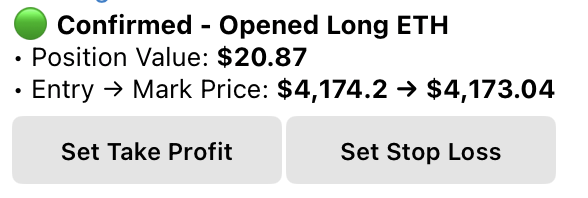
Once you've confirmed your order, you can set a Stop Loss or Take Profit on your option position.
* **Stop Loss:** Automatically closes your position if the market moves against you, helping limit potential losses.
* **Take Profit:** Automatically locks in profits once the market reaches your target level.
* Set the % of the position to execute, then set the % P\&L change or a fixed $ price to trigger
### After You Trade
Once your position is live, here are key commands:
* `/positions` → view, manage, or close open trades
* `/referrals` → get your referral link, refer friends and earn affiliate revenue share, and view your referral stats
* `/wallets` → manage your wallets
* `/settings` → trading settings, social settings, copy settings, set squad (for leaderboard competition), export/withdraw, and more
* `/leaderboard` → see top traders and squads